Published on February 11, 2026
How to Schedule Pinterest Pins with PinWizard
Scheduling Pinterest pins helps you stay consistent, grow traffic, and automate your content strategy. With PinWizard, you can create and schedule pins across multiple boards in just a few clicks.
This tutorial will walk you through how to schedule a Pinterest pin using PinWizard.
Step 1 — Connect Your Pinterest Account
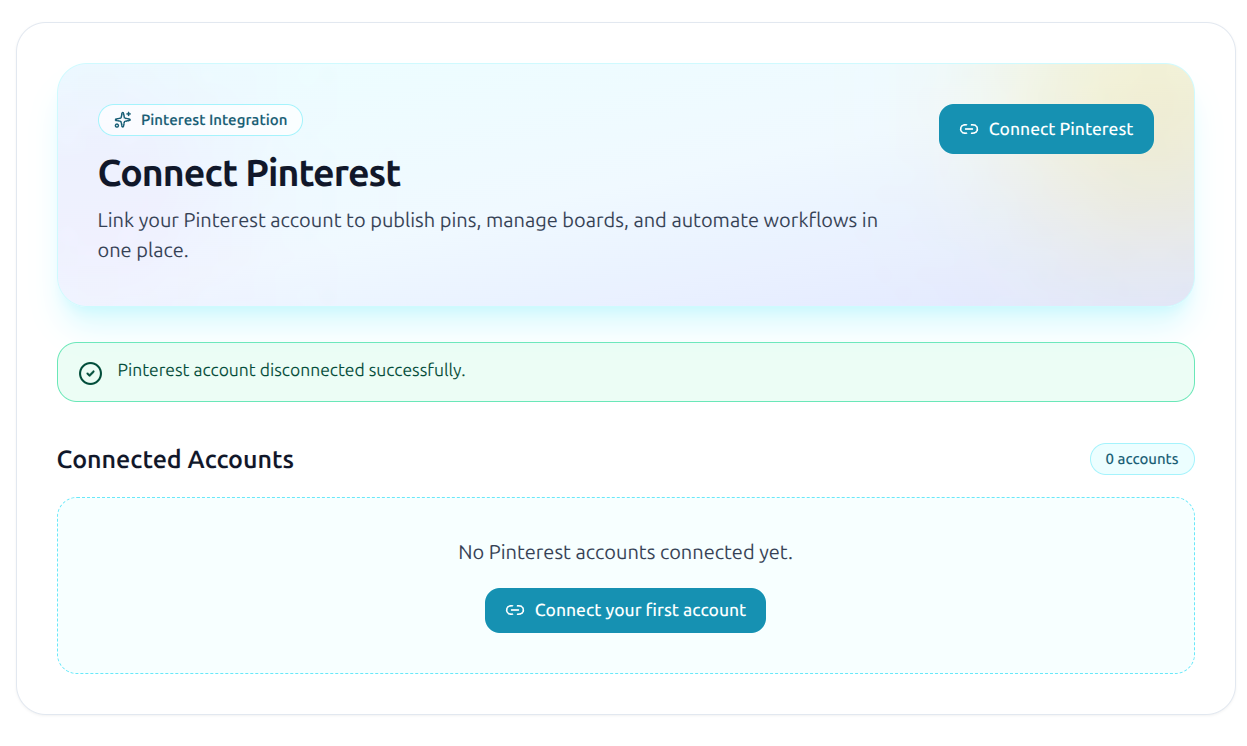
Before creating pins, you need to connect your Pinterest account.
- Go to Connect Pin in the PinWizard dashboard.
- Click Connect Pinterest.
- Authorize access using the Pinterest OAuth flow.
- Once approved, your Pinterest account will appear under Connected Accounts.
You can connect multiple Pinterest accounts if you manage several brands or projects.
Step 2 — Create a New Pin
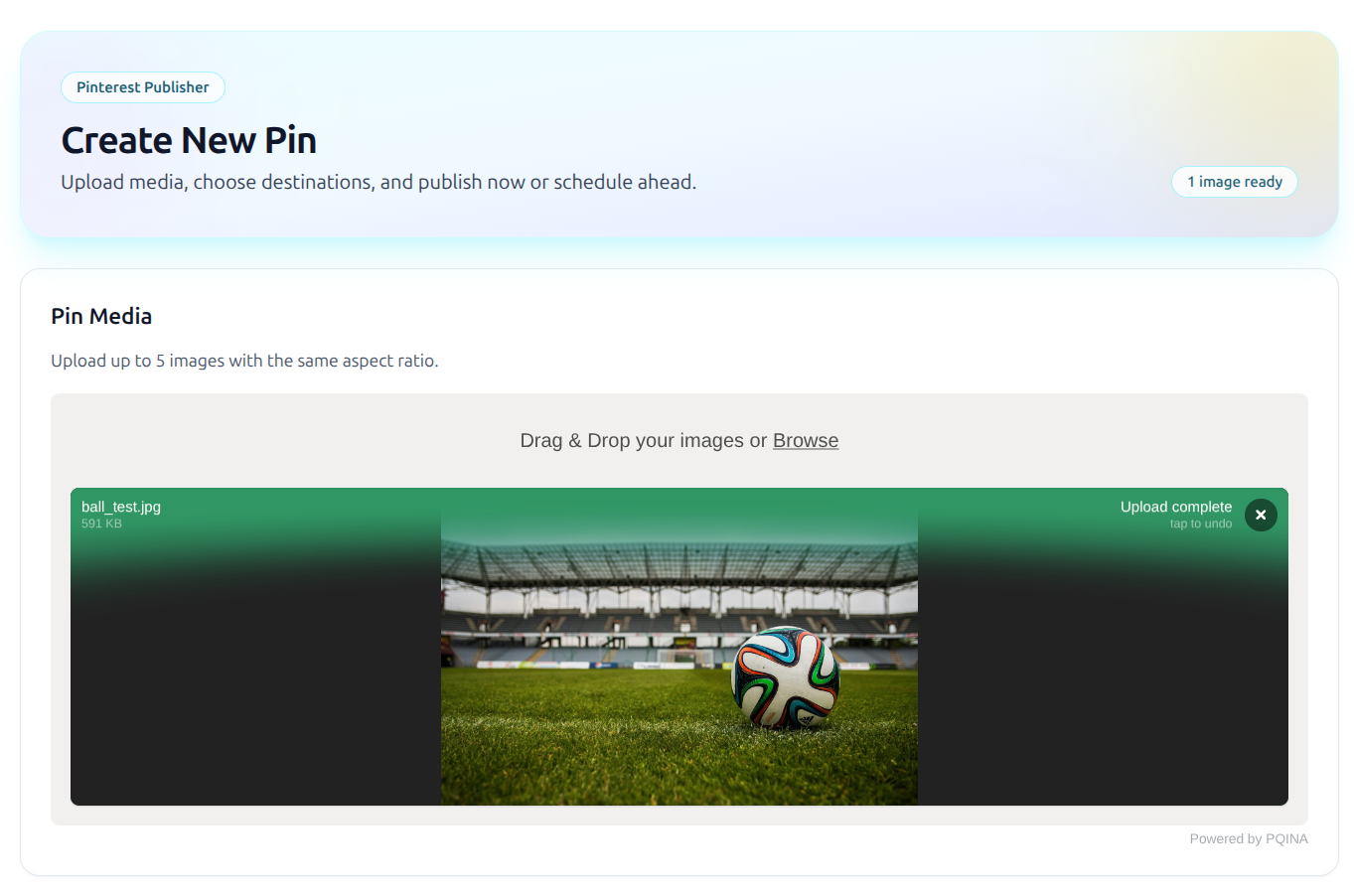
Next, create your pin.
- Go to Create Pin in the sidebar.
- Upload your pin images.
- You can upload up to 5 images with the same aspect ratio.
PinWizard supports drag-and-drop uploading to make the process quick and simple.
Step 3 — Add Pin Details
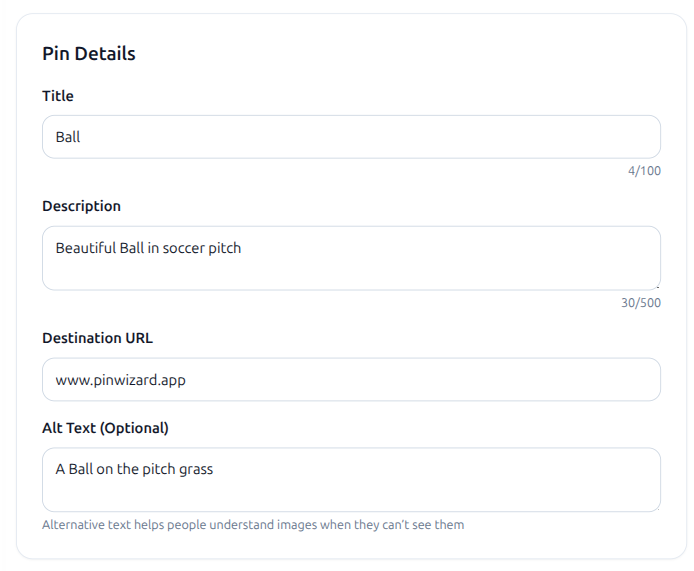
Fill in the information for your pin.
Required fields include:
- Title – an eye-catching headline for your pin
- Description – include keywords to improve Pinterest discovery
- Destination URL – where users will land when they click your pin
Optional:
- Alt Text – improves accessibility for screen readers.
These details help your pin perform better in Pinterest search results.
Step 4 — Select Boards
Now choose where your pin will be published.
You can:
- Select a single board
- Use a Board List (recommended for multiple boards)
Board lists make it easier to publish the same pin across several boards automatically.
Step 5 — Schedule Your Pin
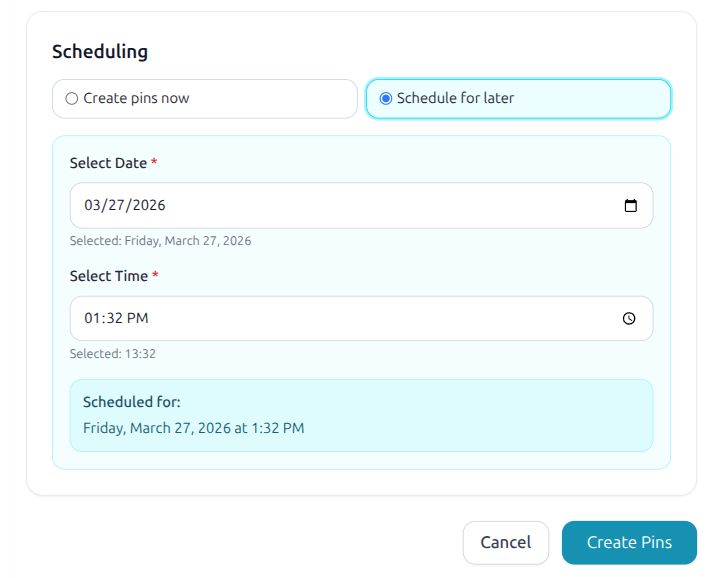
Finally, choose when to publish your pin.
You have two options:
Create Pins Now
Publish immediately to your selected boards.
Schedule for Later
Choose a specific date and time. PinWizard will automatically publish your pin at the scheduled time.
Click Create Pins and your pin will either be posted instantly or added to your scheduled queue.
Final Thoughts
PinWizard makes it easy to manage your Pinterest workflow by allowing you to:
- Connect multiple Pinterest accounts
- Create pins quickly
- Publish to multiple boards
- Schedule pins automatically
This helps you stay consistent on Pinterest without manual posting.